Screenshot to Text
Turn a screenshot into text you can copy. Capture the screen, paste it here with Ctrl+V or Cmd+V, and get back the words from a video, an app or a page that will not let you select them.
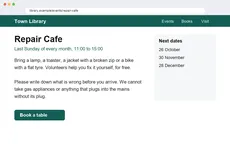
No image to hand? Sample: A desktop screenshot of a library events page.
What we accept
LIMITS PER FORMAT
1 FORMAT
PNG / JPG
.pngMax size
20 MB
Files per job
up to 20
Take the screenshot, then paste it
Every system has a screenshot shortcut. On a computer, pick the one that copies to the clipboard.
Windows
Press Win+Shift+S, drag over the text, and the capture goes to the clipboard. Then press Ctrl+V on this page.
Mac
Press Cmd+Ctrl+Shift+4 and drag to copy an area to the clipboard, then press Cmd+V here. Without Ctrl, the same shortcut saves a file to the desktop instead.
Android
Press the power and volume down buttons together. The capture lands in your gallery; add it here with Choose screenshots.
iPhone and iPad
Press the side or top button and volume up together, or the side or top button and Home on models with a Home button. Tap the thumbnail to crop it, save it to Photos, then add it here.
Crop before you convert
Capture only the part you need. Menus, sidebars and buttons around the text end up in the result, sometimes between its lines.
Screen showing a PDF?
If you have the PDF file itself, PDF to Text reads up to 20 pages in one go instead of one screenshot at a time.
Why people use this tool
For words you can see on the screen but cannot highlight.
Straight from the clipboard
Most screenshot shortcuts can copy the capture instead of saving a file. Paste it here and skip the Downloads folder.
Text you cannot select
Subtitles in a paused video, a message inside an app, a viewer that blocks copying: if it is on screen, a screenshot captures it.
Ready to paste on
The result opens with Copy text as the main button, since screen text usually goes straight into another app.
Reads photos and scanned pages
Clear printed English gives the reader more to work with. Blur, shadows and tilted pages can cause missed or misread text.
Text grouped by page
Pages stay in order. Within a page, columns, lists and headings may need checking before you reuse the text.
Review before you download
Read the extracted text in the result panel, then copy it or download a TXT file. Compare it with your source when accuracy matters.
How to convert a screenshot to text
Four steps, all of them in the browser. Nothing to install and no account — then convert to TXT.
Capture the screen
Use your device's screenshot shortcut, ideally the one that copies to the clipboard.
Paste it here
Paste it onto this page, or choose the saved screenshot file. Add more captures if the text runs over several screens.
Convert and compare
Start the conversion, then compare the text with the screen, paying attention to numbers and links.
Use the words
Press Copy text and paste the words into your notes, a chat or a search box.
What the text result includes
The result is plain text grouped by page. Recognition and reading order depend on the source, so review it before use.
In the result
Plain text you can review, copy or download as TXT.
Page sequence
Pages appear in source order. For an image batch, the order of the images becomes the page order.
Text found
The result contains the words the service could read. Check names, numbers and missing words against your source.
Line breaks
Detected text blocks are separated by line breaks in TXT. Paragraph and heading structure can vary with the source.
Warnings
If processing reports a page warning, it appears with the result so you know what to review.
Check before use
Check the source before relying on the result.
Reading order
Columns, lists, headers and footnotes can be read out of order, especially on complex pages.
Layout and images
TXT does not retain fonts, pictures, tables or exact placement. Reformat the text if you need those details.
About plain text
Plain text stores characters and line breaks, not the layout of the original page.
Scanned pages are read with OCR, so proofread names, numbers and small print before you rely on the text.
Screenshot to text questions
Answers to common questions about Screenshot to Text.
Do I have to save the screenshot first?
No. Copy the capture to your clipboard (Win+Shift+S on Windows does this by default) and press Ctrl+V or Cmd+V on this page. On a phone, copy the screenshot from your gallery and tap Paste image.
Does a dark mode screenshot work?
Light text on a dark background can be read. If words come back missing, switch the app to light mode and capture the screen again.
What about a scrolling screenshot?
A scrolling capture is one tall image, read as one image within the 25 megapixel limit. If a very long capture is refused or comes back thin, take several ordinary screenshots and add them in order instead.
Can I get code out of a screenshot?
The characters come back as plain text, but indentation may not be kept, and look-alike characters such as l, 1 and I can be swapped. Check it before you run it, and copy from the source when you can.
Why are words from a sidebar mixed into my text?
Lines are read from the top of the image down, so a menu or sidebar beside the main text can land between its lines. Crop the screenshot to the part you need before adding it.
Other tools in the set
Same reader, same price, same hour-long retention. Pick the one that matches what you need out the other end.
Image to Text
Pull text out of any photo or scan
Copy Text from Image
Paste or drop an image and copy the text out of it. Works with screenshots, chat pictures and photos. Free, no sign-up, ready to paste.
PNG to Text
Convert PNG images to text online: exported slides, diagrams and screen captures. Copy the text or download it as TXT. Free, no sign-up.